You can create custom User Sources to extend your other data in Easy Insight, as well as build completely custom data sets through adding and editing rows right through reports and dashboards, as well as uploading Excel and CSV files, and publishing data through XML and JSON APIs.
There are four ways to create a user source:
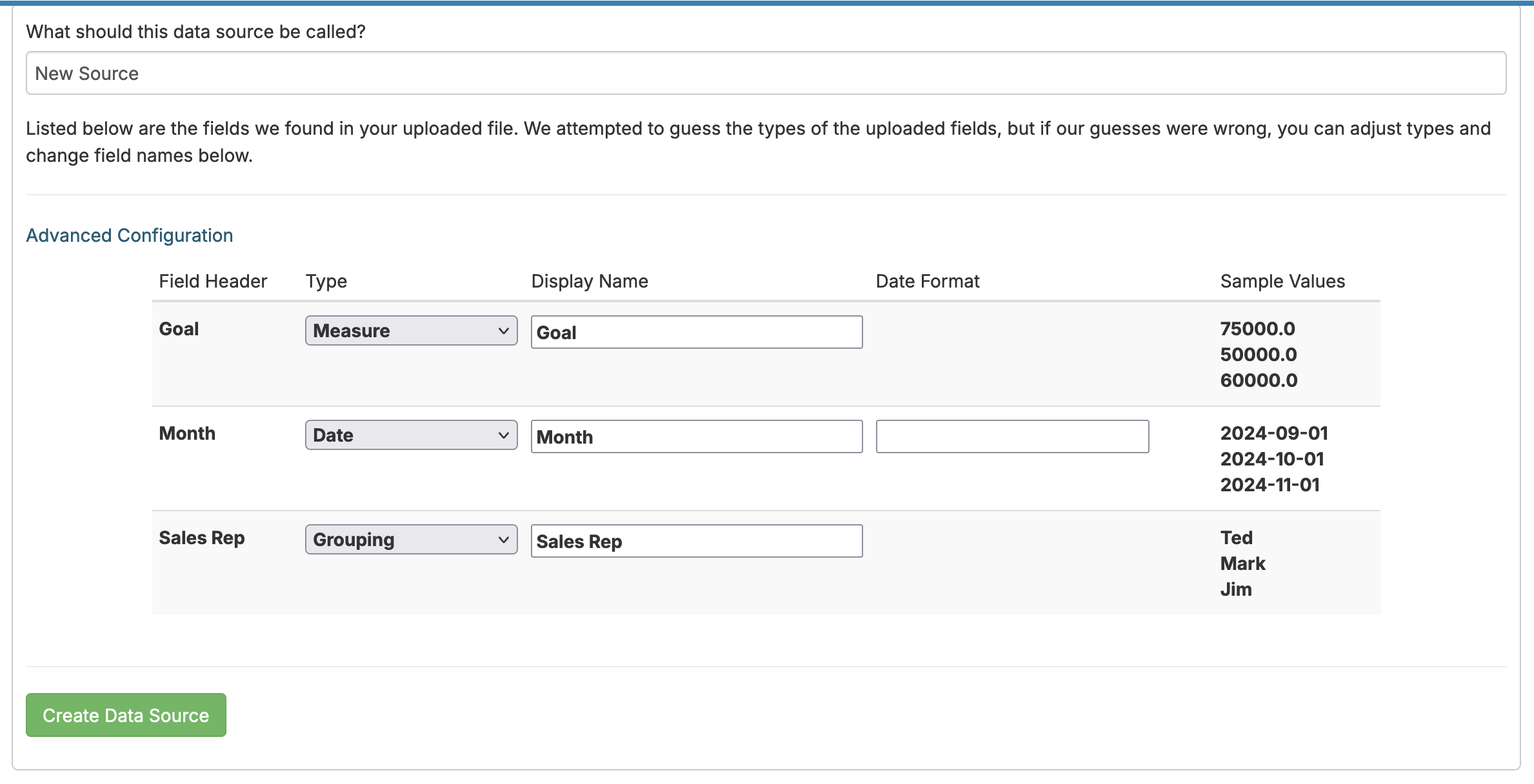
On the Connections page, scroll down to the Excel or CSV connection and click on it. Choose your file to upload. After uploading, you'll be prompted to choose which columns map to which field types:
Give your data source a name and then click Create. After data is processed, you'll be redirected to the newly created data source.
On the Connections page, scroll down to the User connection and click on it. Give the data source name. You can choose whether or not to include a primary key field--if you're going to edit this data source directly from Easy Insight, you'll need to have that enabled, while if you're just going to be uploading CSV/Excel data, you can leave this off to have faster performance on uploading large data sets. Click Create, and your source is created. Next, you can configure fields on the data source.
Click into the data source you wish to convert. Click on Configure the Data Source -> All Configuration Options. Click on Data Source Actions. Click on "Convert to User Source".
Next, you need to choose whether to create a new primary key field or to use an existing field as the primary key. If you have a unique row identifier as is, you can reuse that field by choosing it as the existing field. Otherwise, you'll want to create a new primary key field. Click on "Convert" and the source will be converted over to a User Source.
You can create a user source specifically tied to data in another data source. For example, you could set up a set of custom fields matched up to your products, sales reps, tasks, or anything else. For more information on setting up these custom fields, see Data Source Custom Fields.
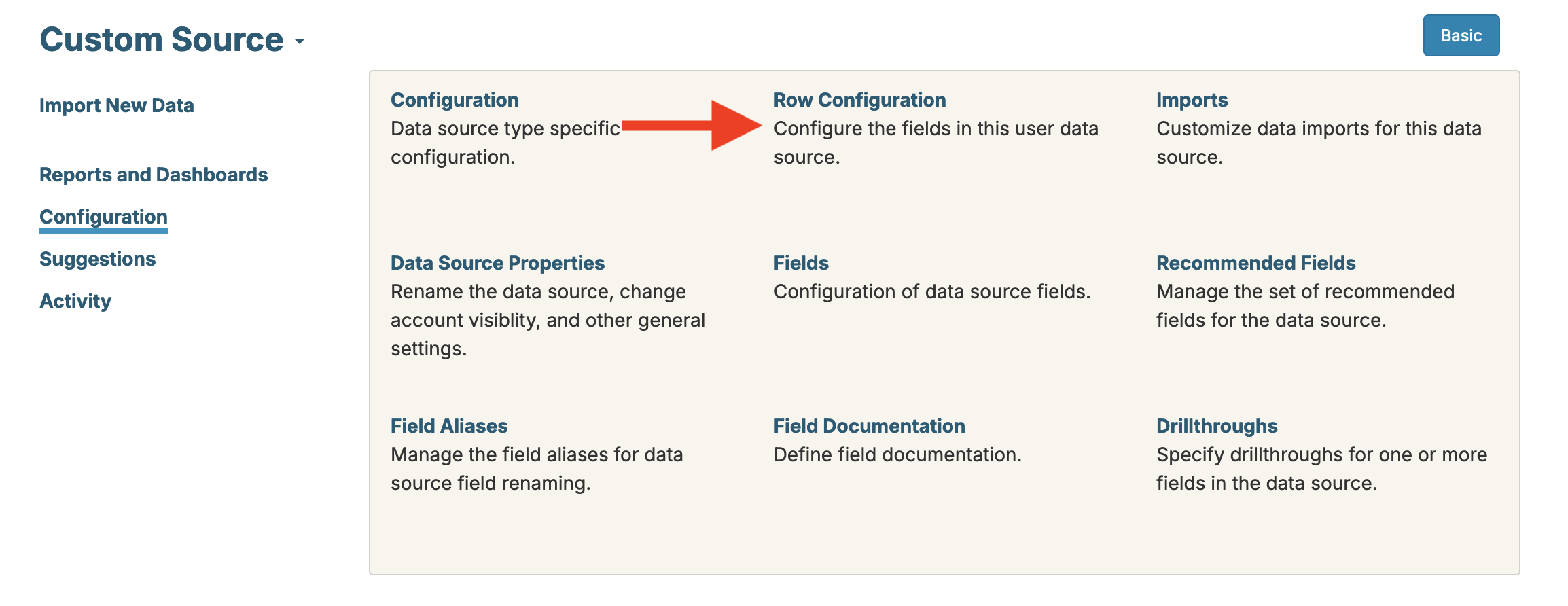
If you need to add new fields to your data source, go to Configuration and click on "Row Configuration" in the upper right. This link takes you to the Row Configuration screen:
The Row Configuration screen has sections for adding and editing fields, defining relationships to other data sources, and backing up or restoring data.
The Fields section allows you to add additional fields to the data source through the Add Field dropdown. You can click on the Name of any added field to configure details about the field.
The Relationships section will only appear if the data source is part of a combined data source. This section allows you to define foreign keys to other data sources.
The Data History section allows you to take a snapshot of your data or restore to a previous snapshot. Your account is limited to five snapshots.
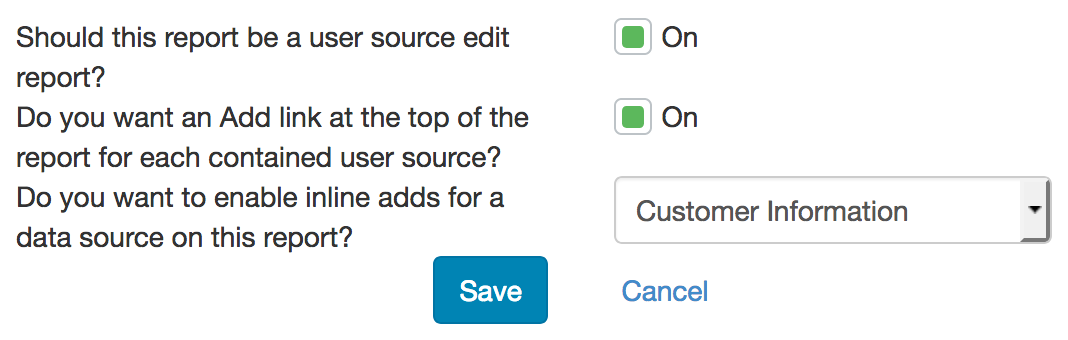
To edit the data in a user data source through a report, create a new report or open an existing list report in the editor. You can create the report on the individual user source or a combined data source containing the user source. Click on Configuration -> User Source Report Config. Toggle "Should this report be a user source edit report?" in order to turn on value edits.
Once enabled, you can click on the cells in the list report to edit values. If it's a grouping or measure, you can just start typing in a cell to start changing the value. Otherwise, you can double click or press enter on a cell to change the value. If the cell doesn't match back to a user source, you can still navigate over it using the cursor keys, clicking, or tabbing, but you won't be able to edit the value.
You can further customize the edit behavior of a cell by clicking on the field in the Report Fields section and doing Edit Field Properties. Go to "Add links to URLs or other reports" and change the type to "User Record Edit". Once configured, you can add options to pull up the Edit Window, include a Delete option, include a Copy option, and control the target data source in the case of a foreign key.